Visitant on WooCommerce
The Visitant WordPress plugin counts your shop visitors without cookies and records the value of every order when the customer lands on the thank-you page. You see which sources, including ChatGPT and other AI assistants, bring buyers and not just clicks.
What you need
- A WooCommerce shop and a WordPress account with the Administrator role (to install plugins).
- A free Visitant account with your shop domain added (Free: 5,000 events a month, 2 sites; or the 14-day Business trial, no card).
- Optional, for AI robots: the Server key from Settings - AI crawler tracking (server) in the Visitant dashboard.
Setup in 5 steps
-
01 Install the Visitant plugin
Download visitant-wordpress.zip, then in WordPress go to Plugins - Add Plugin - Upload Plugin, choose the file, click Install Now and Activate Plugin. It is the same plugin as for any WordPress site - there is no separate shop version.
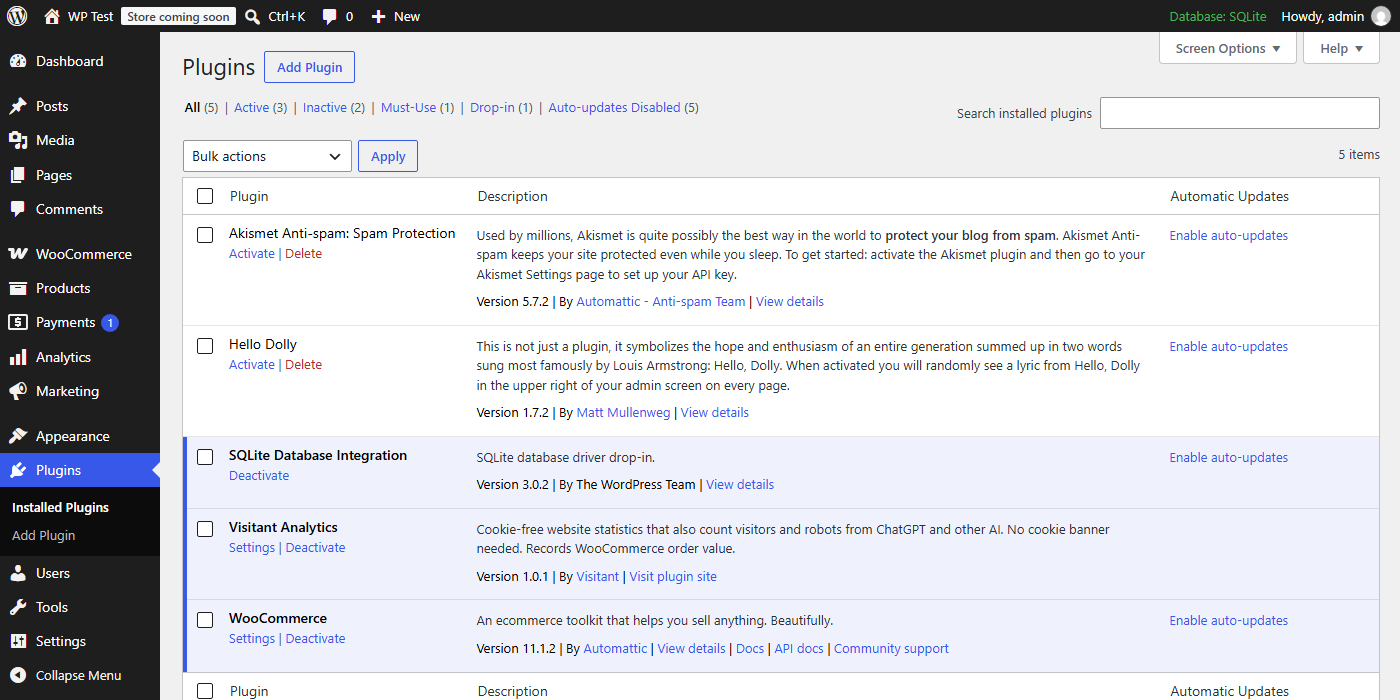
Step-by-step screenshots of the upload are in the WordPress guide.
-
02 Enter your domain and key
Go to Settings - Visitant, enter your shop domain (without
https://andwww) and, for AI robots, the server key. Click Save Changes. Under What is on the plugin should say WooCommerce: order value recorded on the thank-you page - that confirms it found your shop.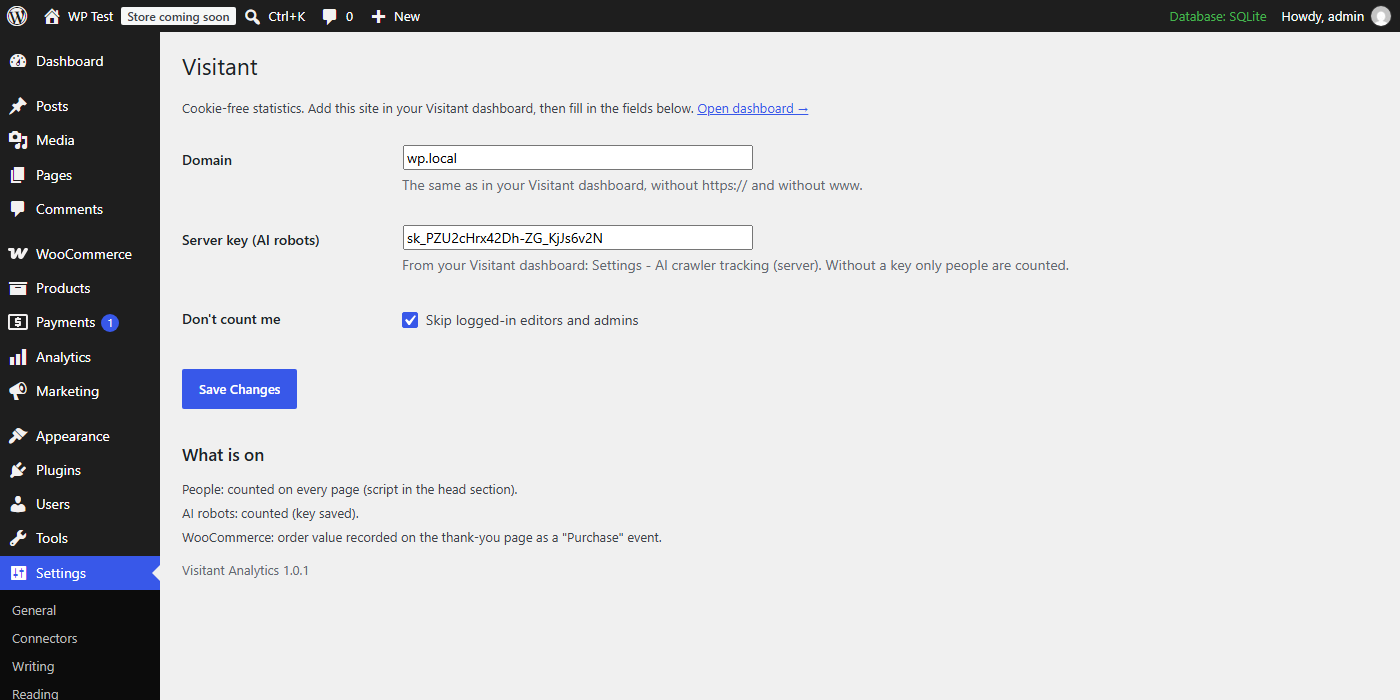
Shop staff logged in to WordPress (admins, shop managers, editors) are not counted. Customers logged in to their account are counted normally.
-
03 Know what is recorded for each order
When a customer reaches the order confirmation (thank-you) page, the plugin sends one event called Purchase with: the order total exactly as WooCommerce shows it (with shipping and tax, after discounts), the currency, the order ID, the number of items and the payment method name. No names, e-mail addresses, delivery addresses or product names leave your shop. The event is sent once per order - reloading the page or opening it again later does not add a second one.
visitant("Purchase", {revenue: {amount: 99.80, currency: "PLN"}, props: {order: "1024", items: 2, payment: "Przelew bankowy"}})This is what the event looks like on the page (example values). You do not need to paste it anywhere - the plugin writes it for you.
-
04 Add Purchase as a goal
In the Visitant dashboard open Settings - Goals, leave Type on Event, type
Purchasein the name field and click Add goal. The Goals and events table then shows buyers, conversion rate and revenue, and every filter works on it - for example only visitors from ChatGPT or from one campaign. -
05 Clear the cache and place a test order
Purge your cache plugin once. Then, in a private window, place a small test order with a payment method that does not charge you (for example Direct bank transfer). Within a minute it appears in the dashboard as a Purchase with its value. Afterwards cancel it in WooCommerce - Orders.
Cancelling the test order in WooCommerce does not remove it from Visitant - the plugin reports orders, not later changes to them (see Common problems).
Is it working? Check in 60 seconds
Keep the dashboard open in one tab and your shop in a private window in another.
- Open a product page: the current visitors counter shows 1 within a few seconds.
- Settings - Visitant in WordPress lists WooCommerce: order value recorded on the thank-you page under What is on.
- After the test order, Goals and events shows Purchase with 1 conversion and the order total in the Revenue column.
- Reload the thank-you page: the number of purchases stays the same.
Common problems
| Some orders are missing | The plugin records an order only when the customer's browser reaches the thank-you page. Orders are missing when the customer closes the tab at the payment provider before being sent back, when you create an order by hand in the admin, and for automatic subscription renewals (no visit happens). Orders that end as Failed or Cancelled at that moment are skipped on purpose. |
| Revenue does not match WooCommerce reports | Refunds and later cancellations are not subtracted in Visitant, and the missing orders above are not added. Use Visitant to see which sources bring buyers; use WooCommerce reports as your accounting total. |
| My own test order was not recorded | You were logged in as an admin or shop manager, and staff are skipped. Place test orders in a private window, as a guest or as a customer account. |
| Two different currencies are added together | Each order is stored with its currency, but revenue totals add the amounts as they are, without conversion. In a shop that sells in several currencies, treat the revenue total as a rough signal and compare sources by number of purchases. |
Questions
Do I need a cookie banner for Visitant in my shop?
Not for Visitant: it sets no cookies, stores nothing in the browser and never stores IP addresses. You may still need a banner for other tools you run, such as ad pixels.
Does it work with the new block checkout and order storage?
Yes. We tested it on WooCommerce 11.1 with a block theme and the new order storage (HPOS) switched on. The plugin reads the order on the thank-you page, so it does not matter whether your checkout is built with blocks or the classic way, and it declares HPOS compatibility, so WooCommerce does not flag it as incompatible.
Can I see which AI assistant brought a buyer?
Yes. Visits from 21 AI assistants, including ChatGPT, Perplexity, Claude and Gemini, are grouped by assistant, and filtering the dashboard by one of them shows its purchases and revenue.
Do AI robots reading my product pages use up my limit?
No. With the server key the plugin reports robots such as GPTBot separately, and robot visits never count toward your monthly events, on any plan.
Create a free account - the dashboard shows these steps with your own domain and key filled in.
Start free →